
목차
C# WPF에서 Material Design 라이브러리를 설치해보고 Control을 배치 해보도록 하자. 설치하는 방법 및 사용 법은 간단하니 직접 따라서 해보도록 하자.
개발 툴 : Visual Studio 2022
사용 언어 : C# WPF
Material Design 설치 방법
1. Visual Studio에서 WPF 프로젝트를 생성 한 후, 아래와 같이 패키지 관리자 콘솔로 이동한다.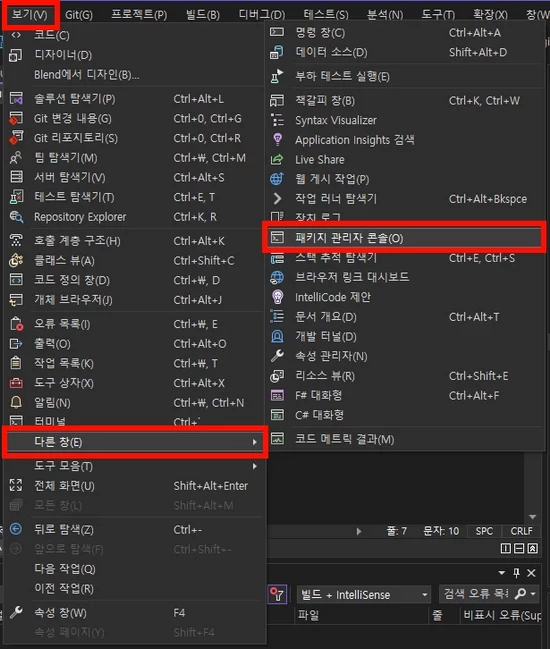
2. 다음과 같이 명령어를 입력한다. PM > Install-Package MaterialDesignThemes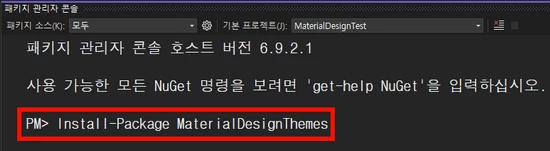
3. 솔루션 탐색기를 이용하여 Material DesignThemes가 정상적으로 설치되었는지 확인한다. 이때 설치된 MaterialDesignThemes버전이 5.0미만 일 때와 5.0이상일 때 테마 색 설정하는 법이 다르다. 그 이유는 5.0 이상 버전부터는 MaterialDesign3 버전이 적용되었기 때문에 설치된 버전에 맞는 설정을 하도록 하자.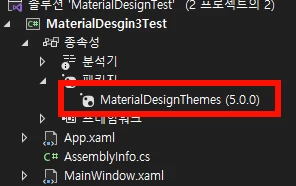
4. App.xaml내 ResourceDictionary에 사용할 디자인을 정의한다. ResourceDictionary에서 테마 색 설정 방법에는 세 가지가 있다.
4.1 Material Design의 기본 색 사용
<ResourceDictionary Source="pack://application:,,,/MaterialDesignThemes.Wpf;component/Themes/MaterialDesign3.Defaults.xaml" /> ▲MaterialDesignTheme5.0이상인 경우
<ResourceDictionary Source="pack://application:,,,/MaterialDesignThemes.Wpf;component/Themes/MaterialDesignTheme.Defaults.xaml" />▲MaterialDesignTheme5.0미만인 경우
4.2 BundledTheme에 정의된 색 사용 – 코드 5번째 줄에 있는 Material Design 라이브러리를 상단 xaml에서 선언해준다. “BaseTheme”에서 라이트 모드, 다크 모드를 설정하고 “PrimaryColor” 및 “SecondaryColor”로 미리 정의된 색을 설정한다.
<Application x:Class="MaterialDesign3Test.App"
             xmlns="http://schemas.microsoft.com/winfx/2006/xaml/presentation"
             xmlns:x="http://schemas.microsoft.com/winfx/2006/xaml"
             xmlns:local="clr-namespace:MaterialDesign3Test"
             xmlns:materialDesign="http://materialdesigninxaml.net/winfx/xaml/themes"
             StartupUri="MainWindow.xaml">
    <Application.Resources>
        <ResourceDictionary>
            <ResourceDictionary.MergedDictionaries>
                <materialDesign:CustomColorTheme BaseTheme="Light" PrimaryColor="DeepPurple" SecondaryColor="Lime" />
                <ResourceDictionary Source="pack://application:,,,/MaterialDesignThemes.Wpf;component/Themes/MaterialDesign3.Defaults.xaml" />
            </ResourceDictionary.MergedDictionaries>
        </ResourceDictionary>
    </Application.Resources>
</Application>
▲MaterialDesignTheme5.0이상인 경우
<Application x:Class="MaterialDesignTest.App"
             xmlns="http://schemas.microsoft.com/winfx/2006/xaml/presentation"
             xmlns:x="http://schemas.microsoft.com/winfx/2006/xaml"
             xmlns:local="clr-namespace:MaterialDesignTest"
             xmlns:materialDesign="http://materialdesigninxaml.net/winfx/xaml/themes"
             StartupUri="MainWindow.xaml">
    <Application.Resources>
        <ResourceDictionary>
            <ResourceDictionary.MergedDictionaries>
                <materialDesign:BundledTheme BaseTheme="Light" PrimaryColor="DeepPurple" SecondaryColor="Lime" />
                <ResourceDictionary Source="pack://application:,,,/MaterialDesignThemes.Wpf;component/Themes/MaterialDesignTheme.Defaults.xaml" />
            </ResourceDictionary.MergedDictionaries>
        </ResourceDictionary>
    </Application.Resources>
</Application>
▲MaterialDesignTheme5.0미만인 경우
4.3 CustomColorTheme에 원하는 색 직접 정의하여 사용 – 코드 5번째 줄에 있는 Material Design 라이브러리를 상단 xaml에서 선언해준다. “BaseTheme”에서 라이트 모드, 다크 모드를 설정하고 “PrimaryColor” 및 “SecondaryColor”로 원하는 색을 자유롭게 설정하여 사용한다.
<Application x:Class="MaterialDesign3Test.App"
             xmlns="http://schemas.microsoft.com/winfx/2006/xaml/presentation"
             xmlns:x="http://schemas.microsoft.com/winfx/2006/xaml"
             xmlns:local="clr-namespace:MaterialDesign3Test"
             xmlns:materialDesign="http://materialdesigninxaml.net/winfx/xaml/themes"
             StartupUri="MainWindow.xaml">
    <Application.Resources>
        <ResourceDictionary>
            <ResourceDictionary.MergedDictionaries>
                <materialDesign:CustomColorTheme BaseTheme="Dark" PrimaryColor="Green" SecondaryColor="DarkGreen" />
                <ResourceDictionary Source="pack://application:,,,/MaterialDesignThemes.Wpf;component/Themes/MaterialDesign3.Defaults.xaml" />
            </ResourceDictionary.MergedDictionaries>
        </ResourceDictionary>
    </Application.Resources>
</Application>
▲MaterialDesignTheme5.0이상인 경우
<Application x:Class="MaterialDesignTest.App"
             xmlns="http://schemas.microsoft.com/winfx/2006/xaml/presentation"
             xmlns:x="http://schemas.microsoft.com/winfx/2006/xaml"
             xmlns:local="clr-namespace:MaterialDesignTest"
             xmlns:materialDesign="http://materialdesigninxaml.net/winfx/xaml/themes"
             StartupUri="MainWindow.xaml">
    <Application.Resources>
        <ResourceDictionary>
            <ResourceDictionary.MergedDictionaries>
                <materialDesign:CustomColorTheme BaseTheme="Dark" PrimaryColor="Green" SecondaryColor="DarkGreen" />
                <ResourceDictionary Source="pack://application:,,,/MaterialDesignThemes.Wpf;component/Themes/MaterialDesignTheme.Defaults.xaml" />
            </ResourceDictionary.MergedDictionaries>
        </ResourceDictionary>
    </Application.Resources>
</Application>
▲MaterialDesignTheme5.0미만인 경우
5. Control을 배치할 xaml내에 버튼을 하나 생성하여 본다.
<Button Content="WestAhn 버튼" Width="200"></Button>6. 디버깅하여 디자인이 정상적으로 나타나는지 확인한다.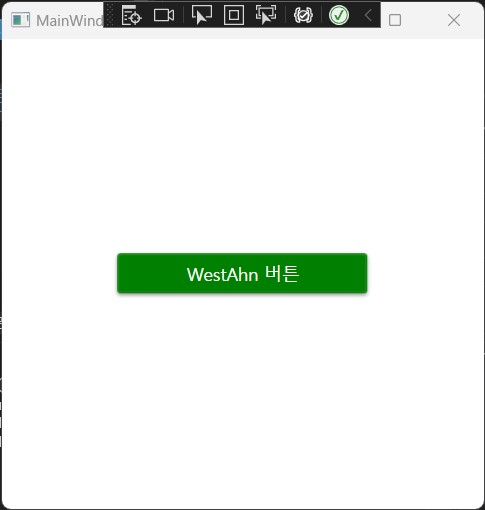
15 comments
안녕하세요. 올려주신글 참고해서 연습해보고 있습니다.
material design 적용 후 아래와 같이 에러 떠서 디자인과 컬러 적용이 안되는데 어떻게 해결해야 하나요?
Error XDG0010 ‘themes/materialdesigntheme.defaults.xaml’ 리소스가 없습니다.
Error XDG0010 ‘themes/recommended/accent/materialdesigncolor.lime.xaml’ 리소스가 없습니다.
안녕하세요. 음.. 우선 전체 코드가 없어 정확히 확인은 안되지만 내용 상 봤을 때는 리소스 문제인거 같습니다. 구글링해도 이와같은 에러를 확인하기 힘들어서..ㅜ 아무래도 대소문자 구분이 안되었거나 위 글의 4.2의 5번째줄 코드가 추가 되었는지 확인 부탁드립니다.
혹시 확인하시고 안되시면 한번 더 답변 부탁드립니다.ㅎㅎ
테스트해보니 원인을 찾았습니다.
Material Design이 3일전에 업데이트 되면서 리소스 이름이 변경되었네요….
저도 10년 가까이 쓰면서 리소스 이름이 변경된 건 처음 보네요….ㅎ
MaterialDesignThemes5.0이상 버전부터는 MaterialDesign.Defaults.xaml을 MaterialDesign3.Defaults.xaml로 변경하면 사용가능합니다.
내용은 수정해놓도록 하겠습니다.
감사합니다!^^
죄송한데 변경해야하는 부분을 못찾겠는데 확인 부탁드려요^^:
죄송한데 변경해야하는 부분을 못찾고 있어서요, 한번더 확인 부탁드립니다 :)
ResourceDictionary 에Source=”pack://application:,,,/MaterialDesignThemes.Wpf;component/Themes/MaterialDesign3.Defaults.xaml” 이걸 넣으시면 됩니다!ㅎ
Xaml <>코드형태 답변이 안달려서 부득하게 이렇게 써드려용ㅜ
감사합니다.
윈폼 몇 달 독학중이였는데, 아무래도 wpf를 배워야 할 듯 합니다. 감사합니다.
감사합니다. 윈폼을 몇 달간 독학하던 초보 무직자입니다.
위의 예제의 wpf 초록색 버튼을 따라서 띄어보았는데
눌렀더니 뭔가 멋진 시각 효과가 있네요. 감동입니다. ㅠㅠ
감사합니다.
많은 도움이 되었다니 뿌듯하네요! 화이팅입니다!
ㅇㅇ
아빠물개
YG
I was curious if you ever considered changing the
layout of your site? Its very well written; I love what youve got to say.
But maybe you could a little more in the way of content so people could connect
with it better. Youve got an awful lot of text for only having 1
or 2 pictures. Maybe you could space it out
better?
I couldn’t refrain from commenting. Very well written!
bookmarked!!, I love your blog!